

Org configuration
If users in your organization want to use Watt, here's how to set it up.
Setting up Watt in a Claude organization requires the Owner role. If that's not you, send them this link.
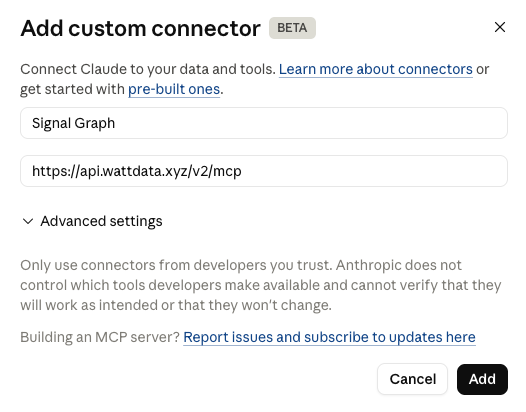
Add the Connector
Organization settings → Connectors → Add → Custom → Web
On Team and Enterprise plans, a connector has to be approved at the org level before anyone can use it — until then, the Signal Graph connector shows up grayed out for users.
Allow file downloads
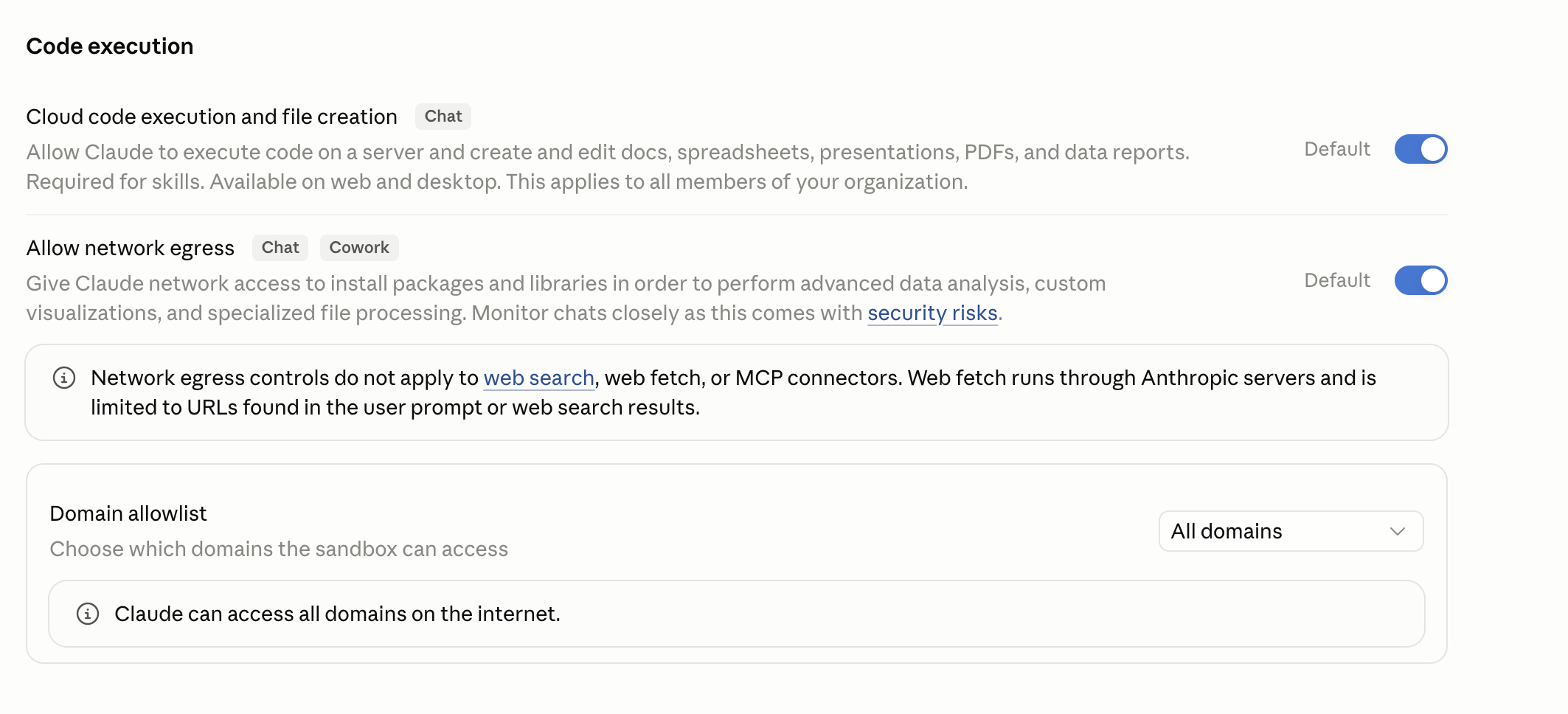
Organization settings → Capabilities → Code execution
Audience exports come back as download links served from a cloud storage domain, so Claude needs network egress turned on to reach them. An Org Owner enables it once:
- Turn on Allow network egress.
- Under Domain allowlist, choose All domains — Watt's export links come from a cloud storage domain, so this keeps downloads from being blocked.
Enable Cowork
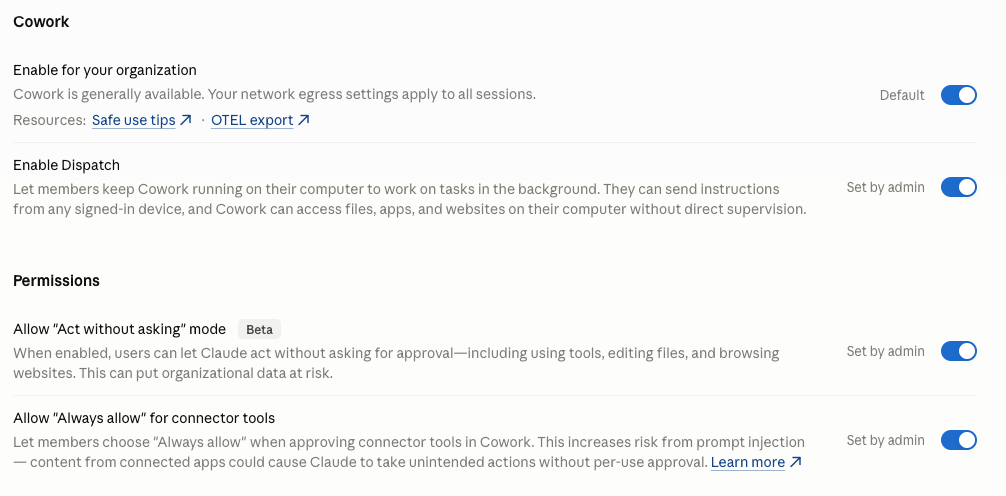
Organization settings → Cowork
Most users run Watt in Cowork, which is enabled at the org level. Turn it on and allow users to enable connector tools to run without explicit approval each time.
- Turn on Enable for your organization
- Turn on Allow "Act without asking" mode
- Turn on Allow "Always allow" for connector tools
Org user
For individual members of a Claude Team or Enterprise plan. Quickstart walks you through setup step-by-step, this is your reference guide.
Org-wide installation
Optional, advanced. The three steps under Org configuration are all an individual needs. If you want to give your whole organization Watt, auto-installed and auto-updated, so no one has to configure it themselves — follow these steps.