

Personal account
To use Watt with your personal Claude account there are a few settings to get right. Quickstart walks you through them step-by-step, this is your reference guide.
These instructions assume you've already installed the Watt plugin. If you haven't, start with the Quickstart — it takes about five minutes.
Turn on the connector
Customize → Plugins → Watt → Connectors
The Watt plugin bundles the Signal Graph connector. Open its Connectors tab and connect it:
- Click Install to install the connector.
- A pre-filled connector dialog opens — click Add.
- Click Connect on the connector to start the login flow.
- Log in with your business email.
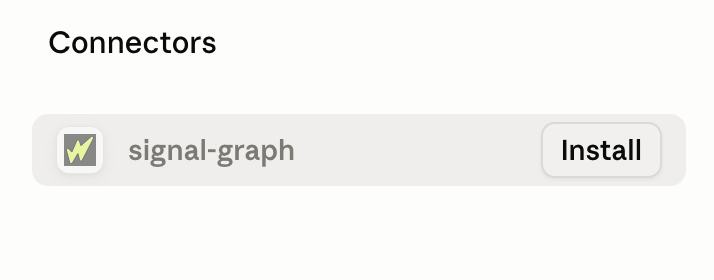
If the Signal Graph Install button is grayed out and not clickable, your account is part of a Claude organization. To complete the configuration, forward this email to your organization's Owner or DM them a link to the Org configuration docs.
Allow file downloads
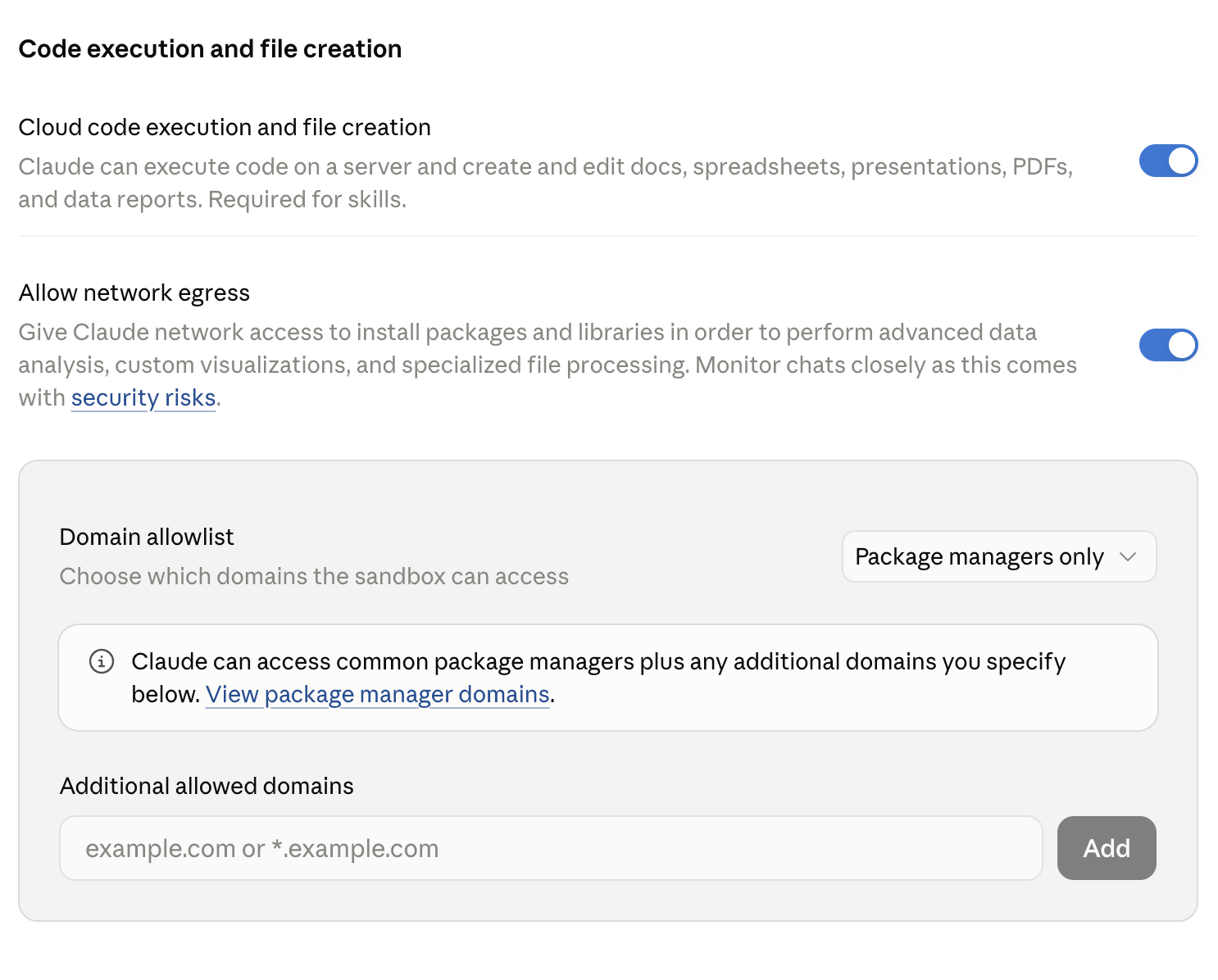
Audience exports come back as download links served from a cloud storage domain, so Claude needs network egress turned on to reach them.
- Turn on Allow network egress.
- Under Domain allowlist, choose All domains — Watt's export links come from a cloud storage domain, so this keeps downloads from being blocked.
Turn on automatic updates (required)
Customize → Plugins → Browse plugins
Don't skip this. Claude will never update the plugin on its own. Until you turn on Sync automatically and click Check for updates once, you stay pinned to the exact version you installed — you won't get any new skills or agents, and the only other way to update is to uninstall and reinstall the plugin. Everyone should turn this on.
- Open the Personal tab and find the Watt plugin.
- Click the ⋯ menu next to the plugin and toggle on Sync automatically.
- Click Check for updates. You have to do this once to start syncing — it won't kick in on its own until you do.
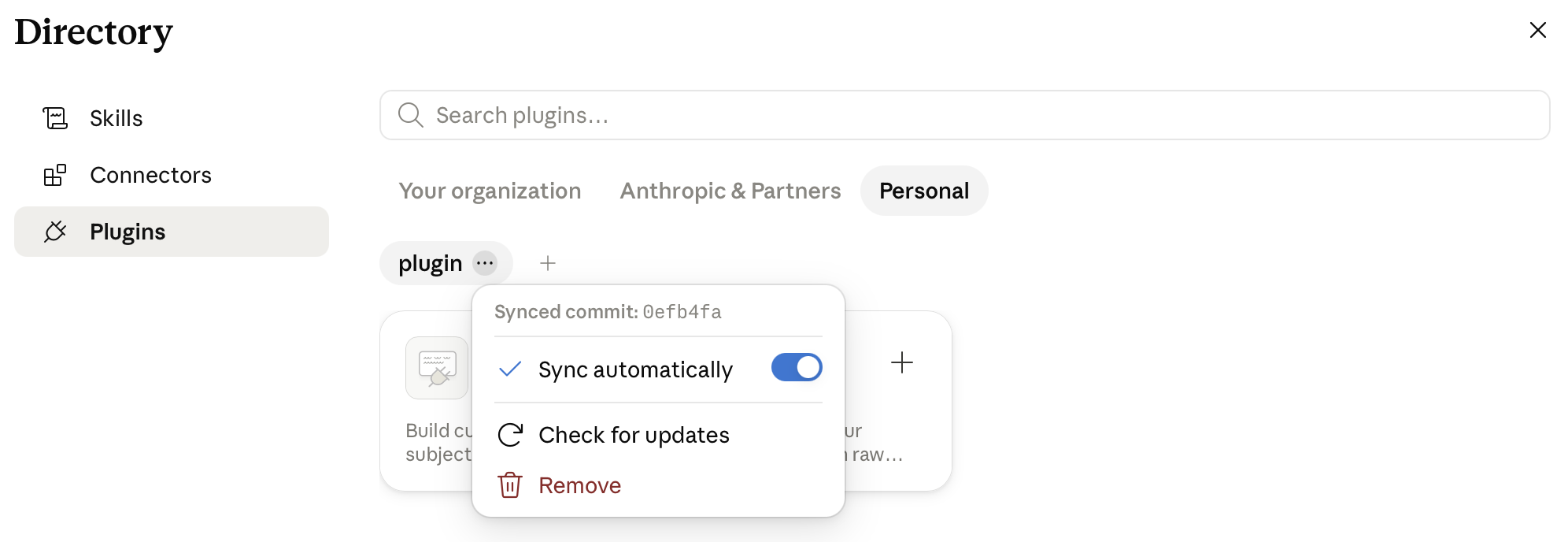
Claude's plugin UI varies between accounts. If you're struggling to reach the plugin directory, use the Browse plugins deeplink above — it usually opens the right place regardless of which UI you have.
Don't see Sync automatically at all? Remove the plugin, then add it again (step 1 of the Quickstart). The Sync automatically option should appear afterward.
Claude
Watt runs inside Claude using the Watt plugin and its bundled Signal Graph connector. Configuration depends on your account — pick the path that matches yours. If you're unsure start with Personal account.
Org user
For individual members of a Claude Team or Enterprise plan. Quickstart walks you through setup step-by-step, this is your reference guide.